On this page8 sections
To add a co-host on Booking.com, click the account icon in the top right corner, choose Create and manage users, and click Add a user. Type their name and email, click Next step: set up access rights, switch off anything they don't need, and click Send invite. Booking.com emails the invitation straight away, and your co-host shows as Pending until they accept. On Booking.com, a co-host is just another user on your property.
TL;DR
#- On Booking.com, a co-host is another user on your property. You add them in Create and manage users.
- Every access switch starts on. You turn off what your co-host doesn't need, like Finance.
- Booking.com emails the invite straight away. Your co-host shows as Pending until they accept.
- Booking.com only covers its own property, and Host Port adds your co-host to every site once (Steps 5 and 6).
Prefer to watch? Here's the whole guide as a video.
Step 1: Open your users
#-
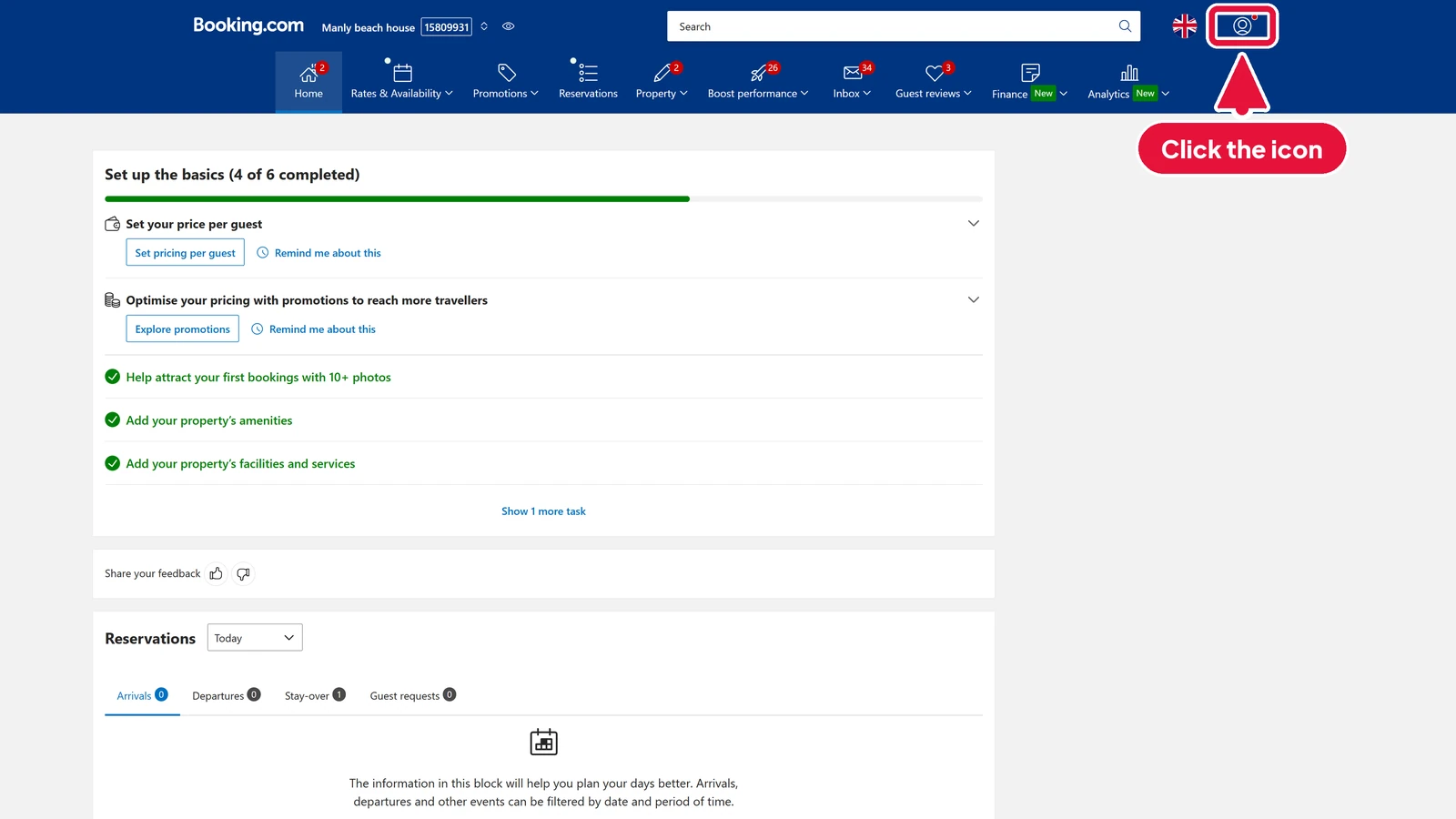
In your Booking.com extranet, click the account icon in the top right corner.
-
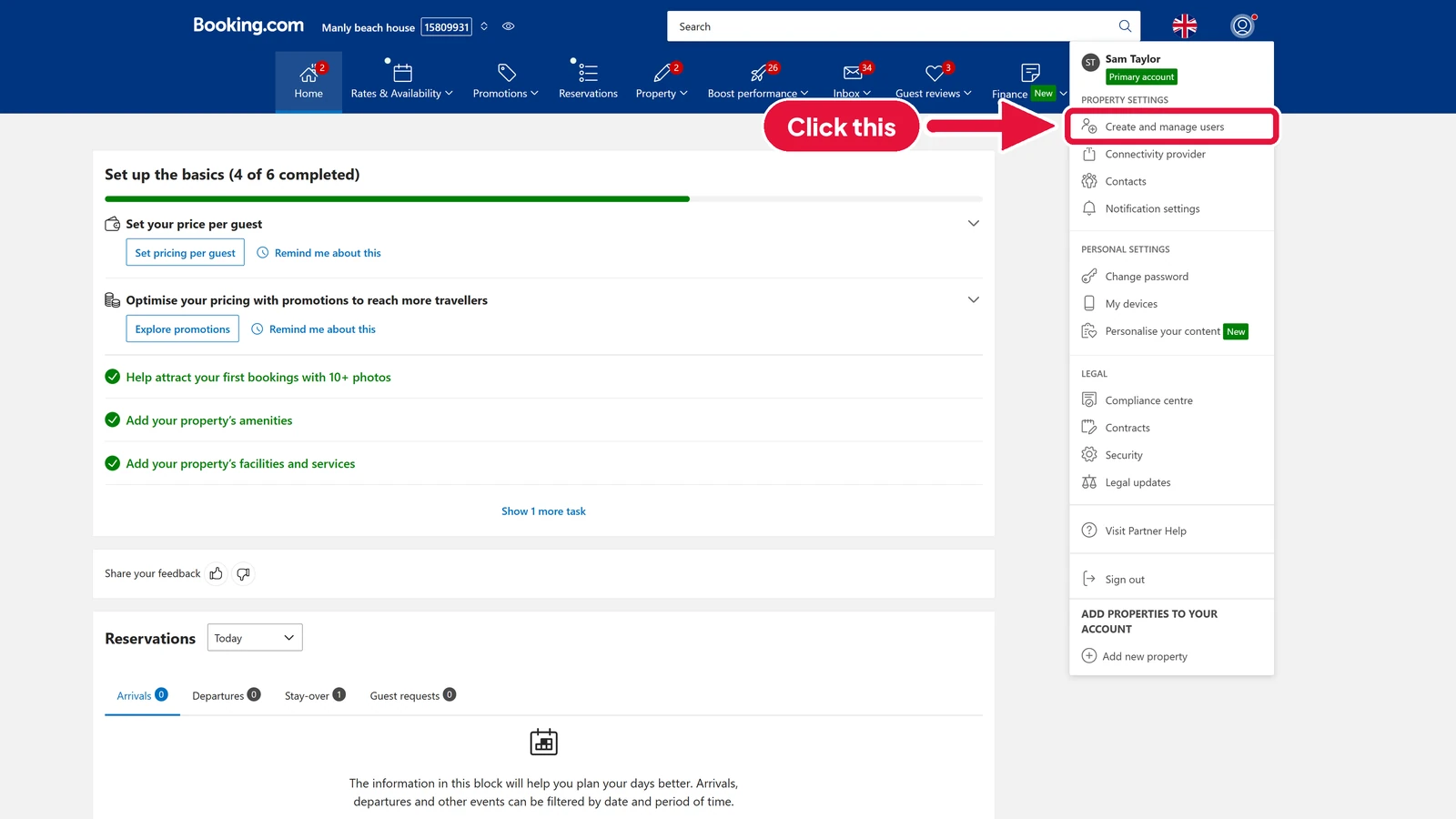
In the menu, choose Create and manage users.
-
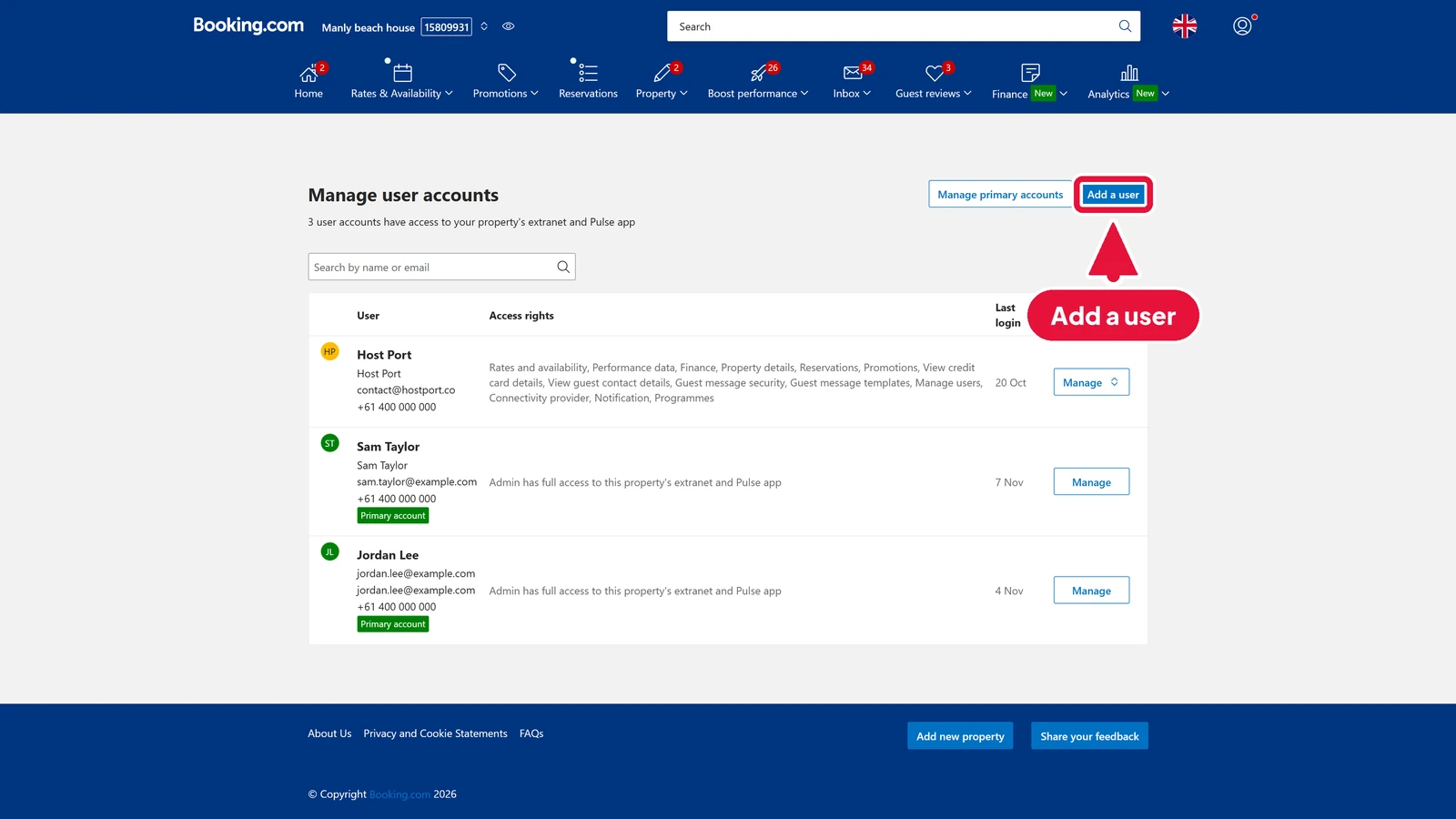
You are now on Manage user accounts. It lists everyone who can log in to your property, and what each person is allowed to do.
Step 2: Add your co-host
#-
Click Add a user.
-
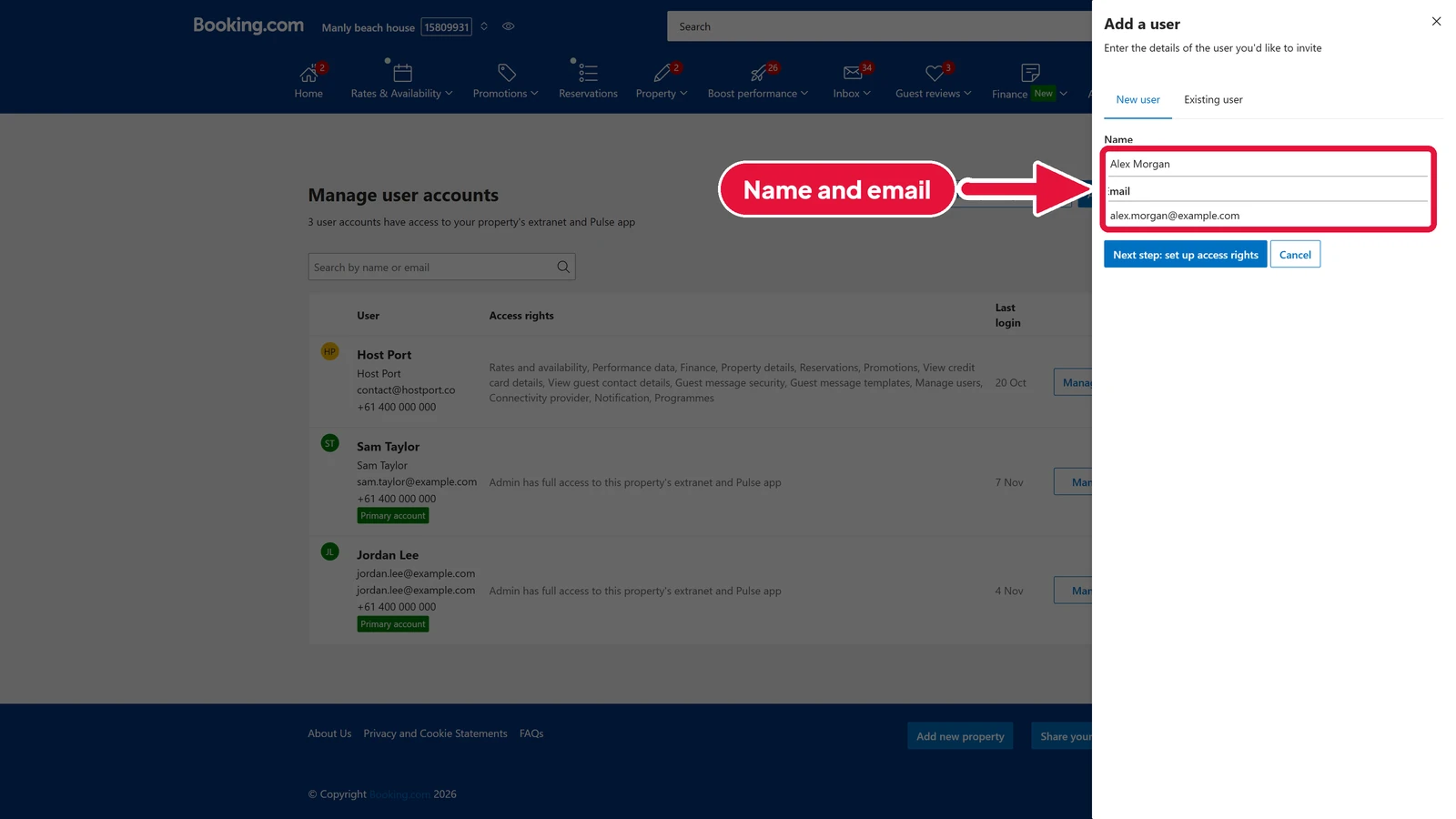
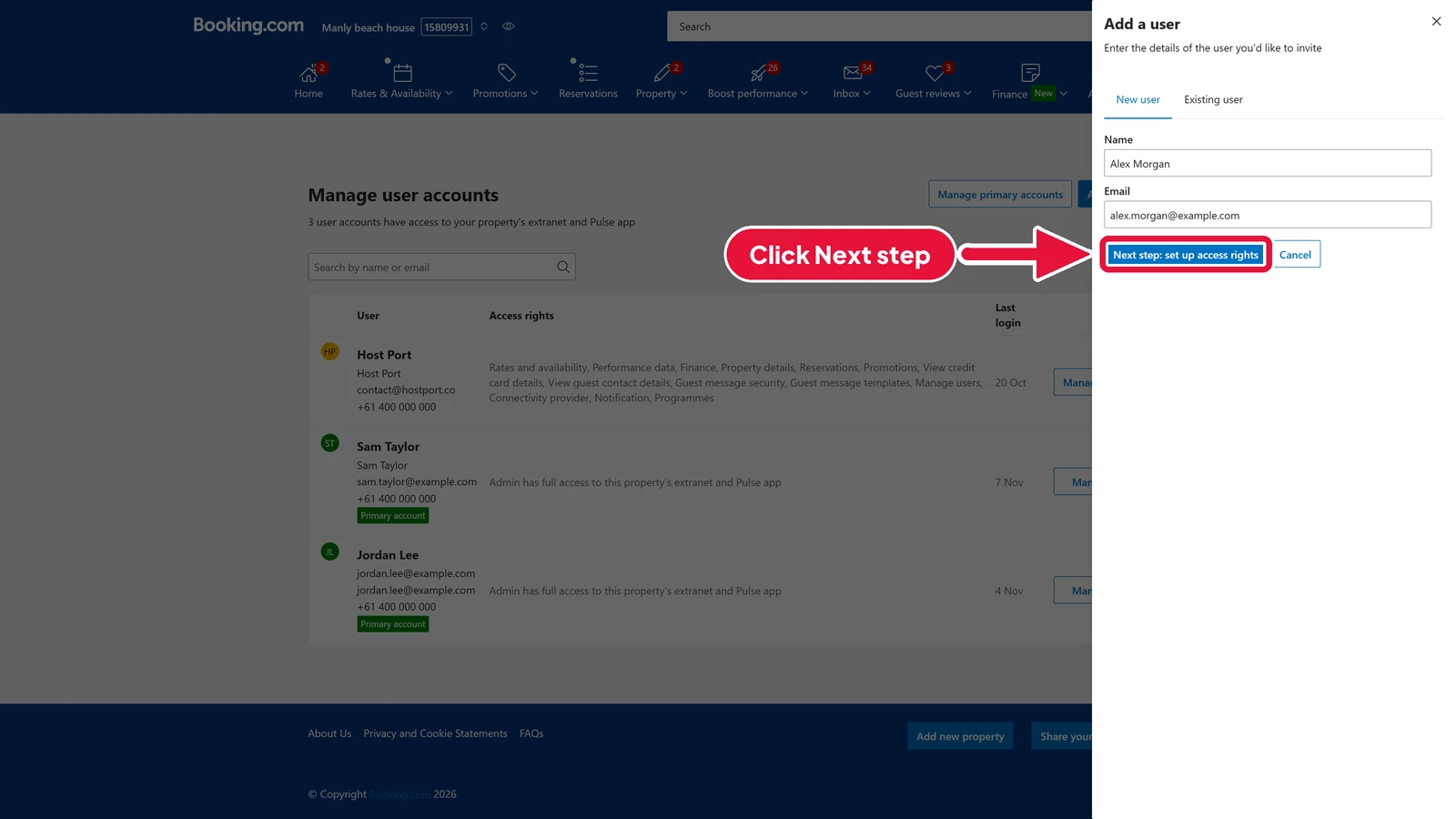
Under New user, type your co-host's Name and Email.
-
Click Next step: set up access rights.
Step 3: Choose their access
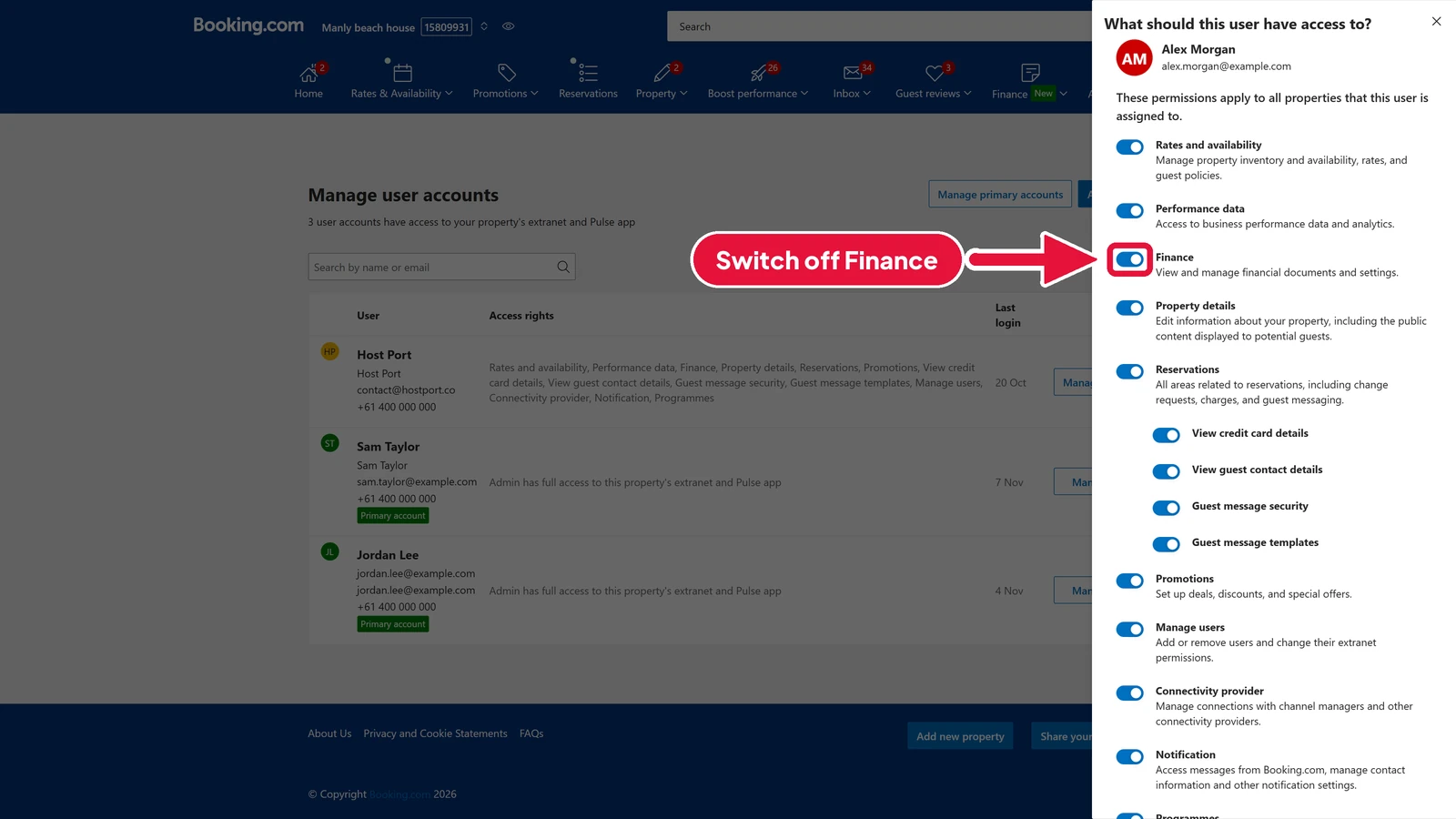
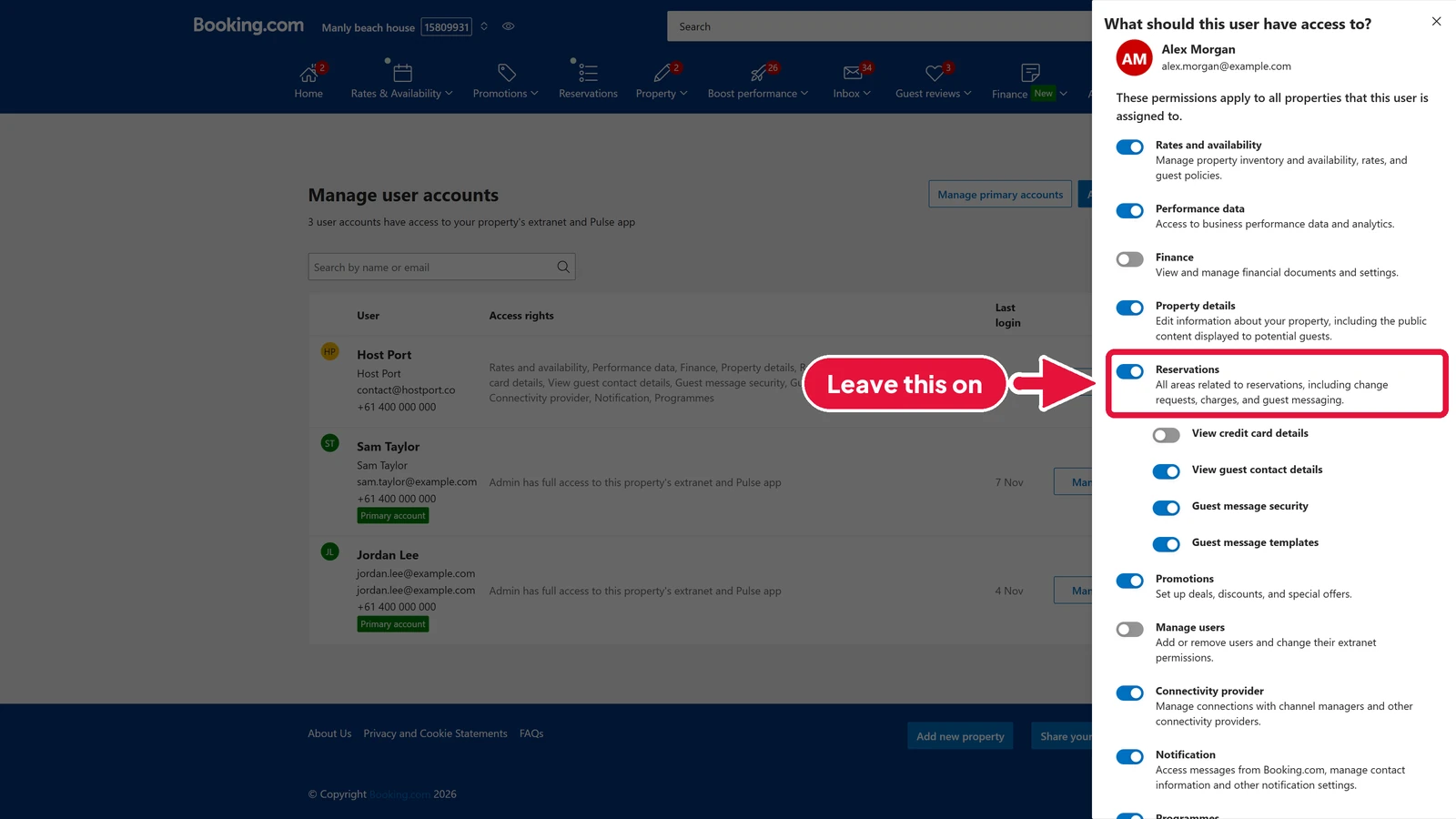
#Every switch on this panel starts on. Turn off anything your co-host doesn't need.
-
Switch off Finance, so they can't see your payouts.
-
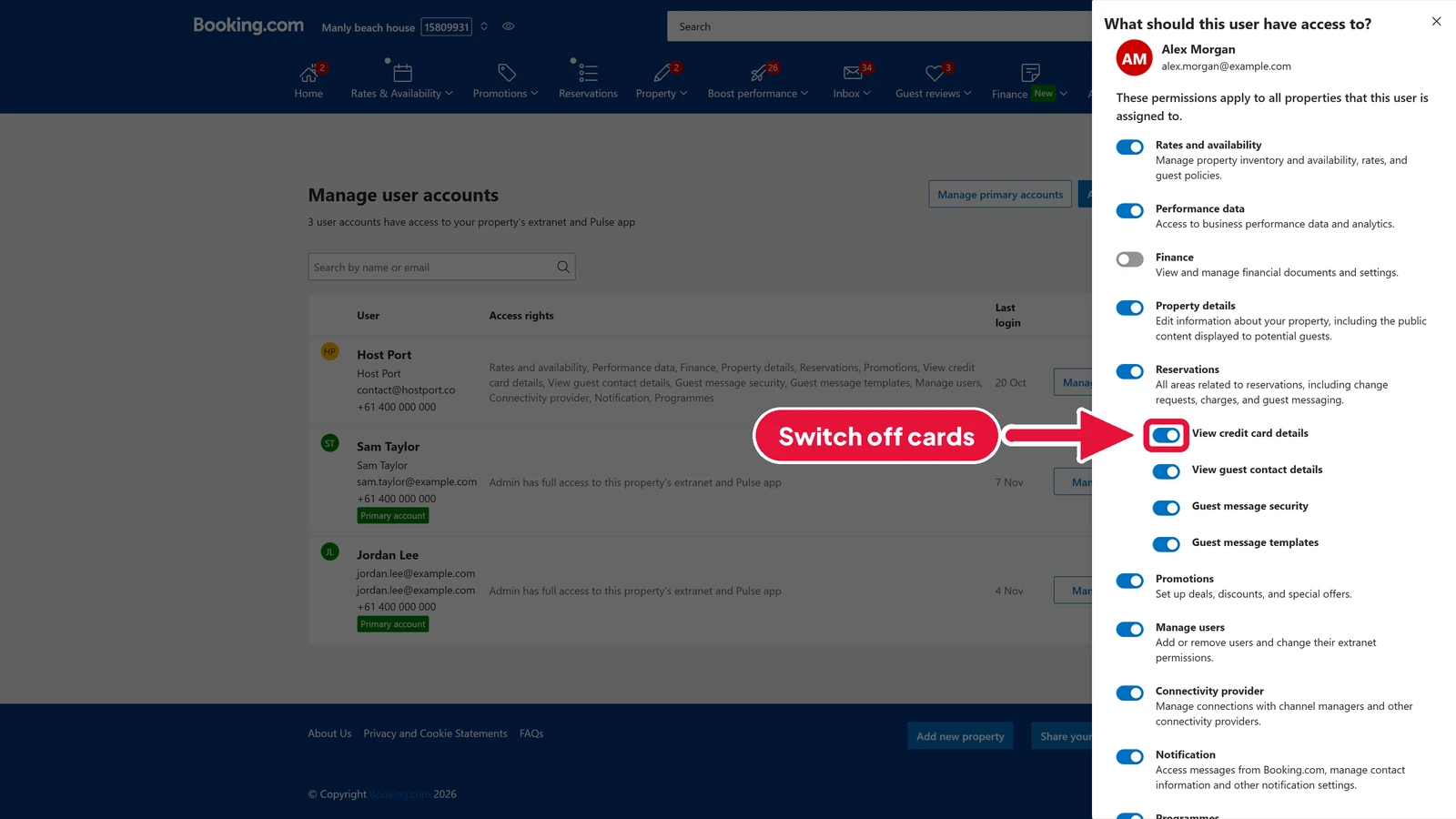
Under Reservations, switch off View credit card details, to keep guest cards private.
-
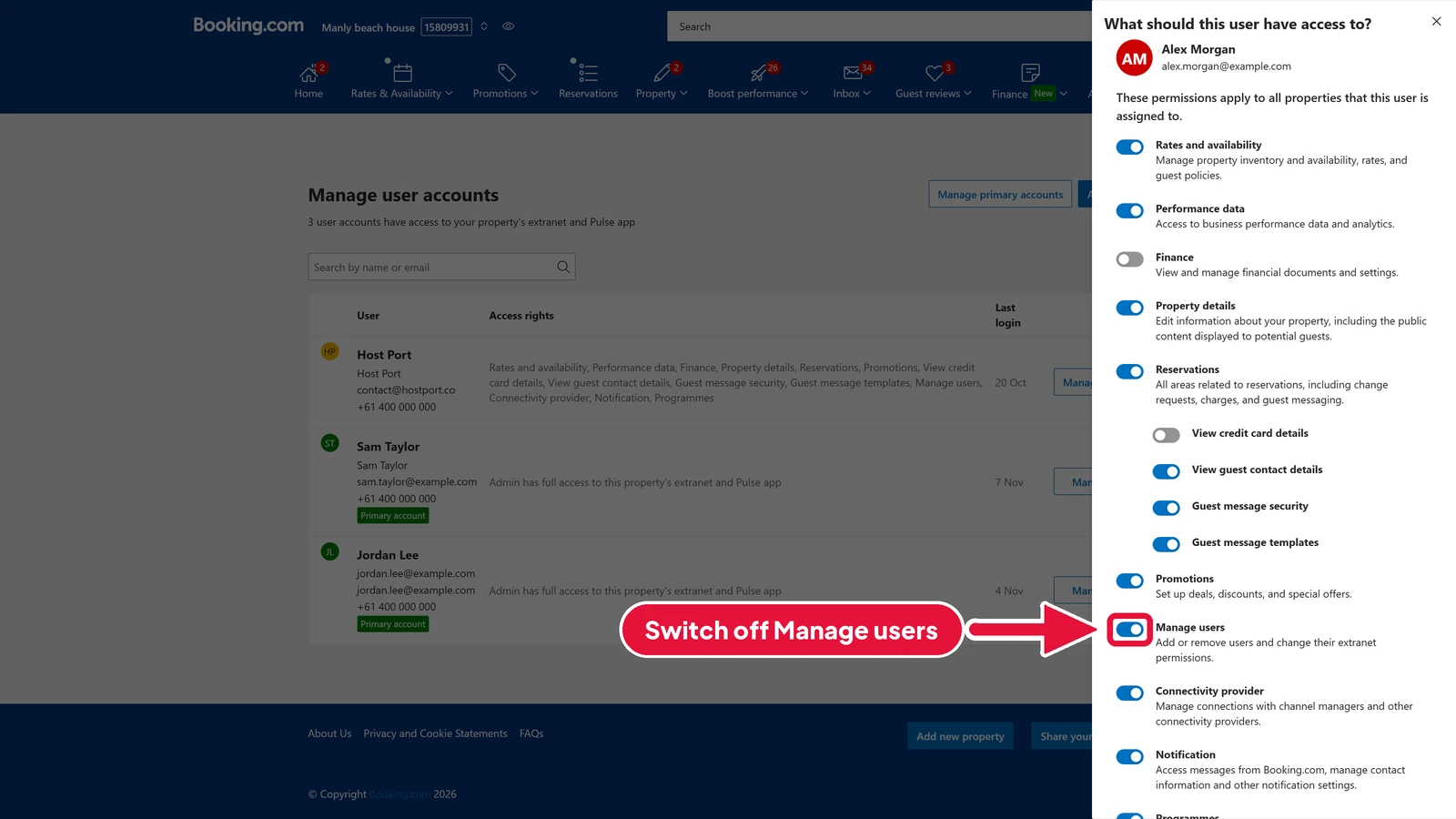
Switch off Manage users, so only you can add or remove people.
-
Leave Reservations on, with the guest message switches under it. Reservations and guest messages are what a co-host needs day to day.
Step 4: Send the invite
#-
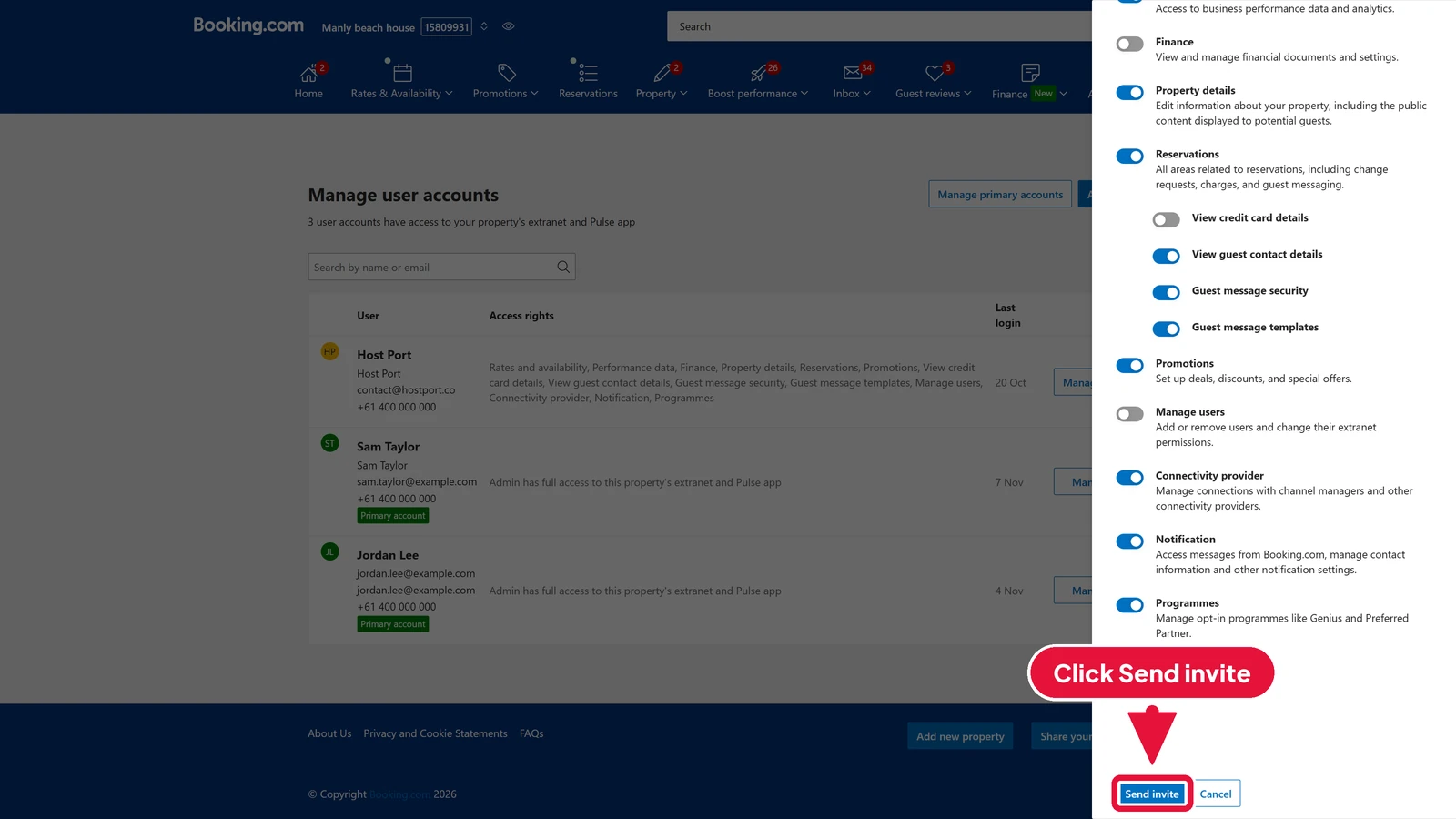
Scroll down to the bottom of the panel, and click Send invite.
-
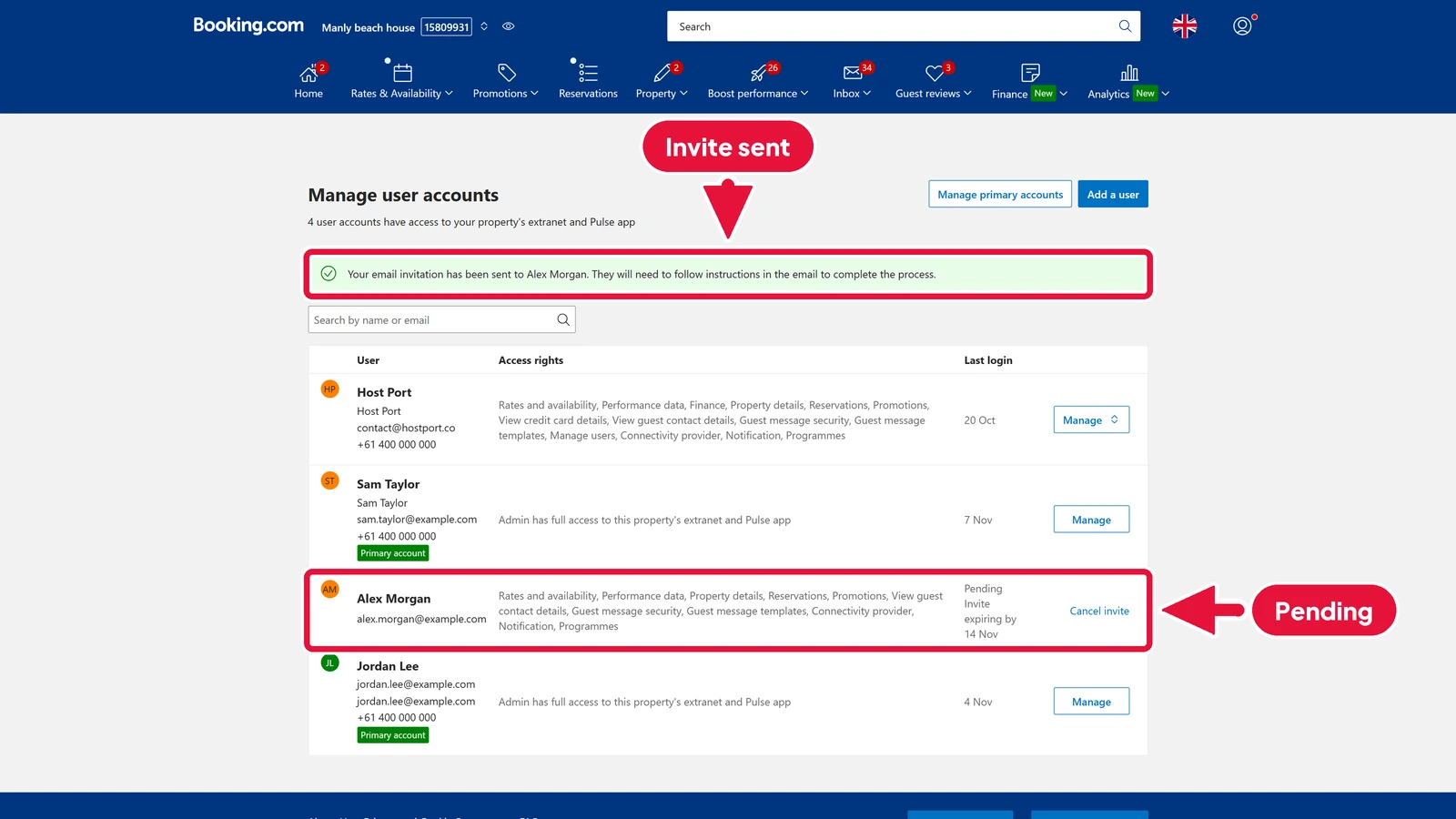
Booking.com emails your invitation straight away, and a green banner says it was sent. Your co-host shows as Pending in the list. They have a week to accept.
The catch: Booking.com only adds your co-host to Booking.com
#A co-host you add on Booking.com can only help on Booking.com. If you also take bookings on Airbnb or Vrbo, you'd have to add them again on every other site.
With Host Port, you add your co-host once. They can then help on every site from one place. Here's how.
Step 5: Open your Host Port team
#-
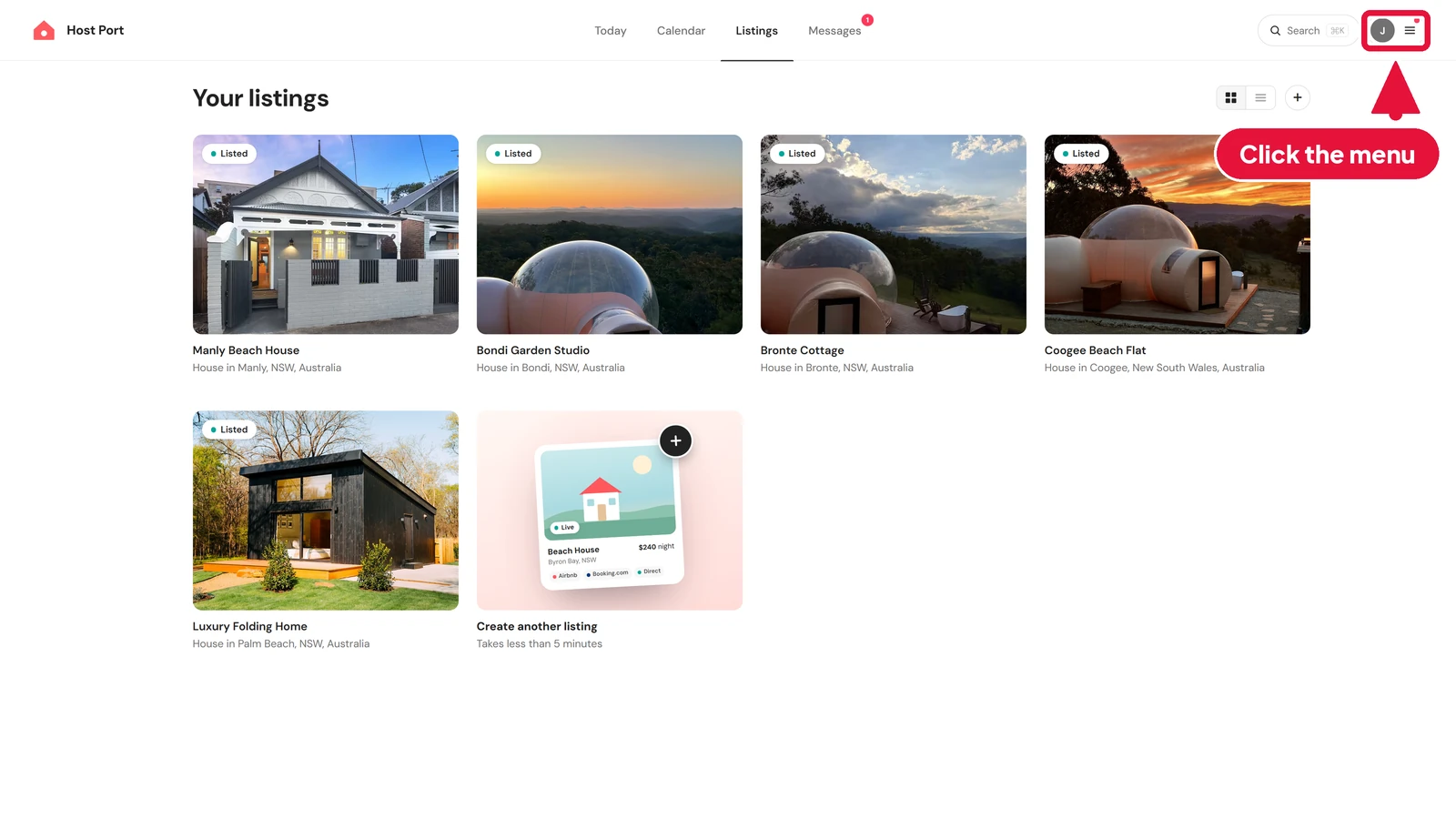
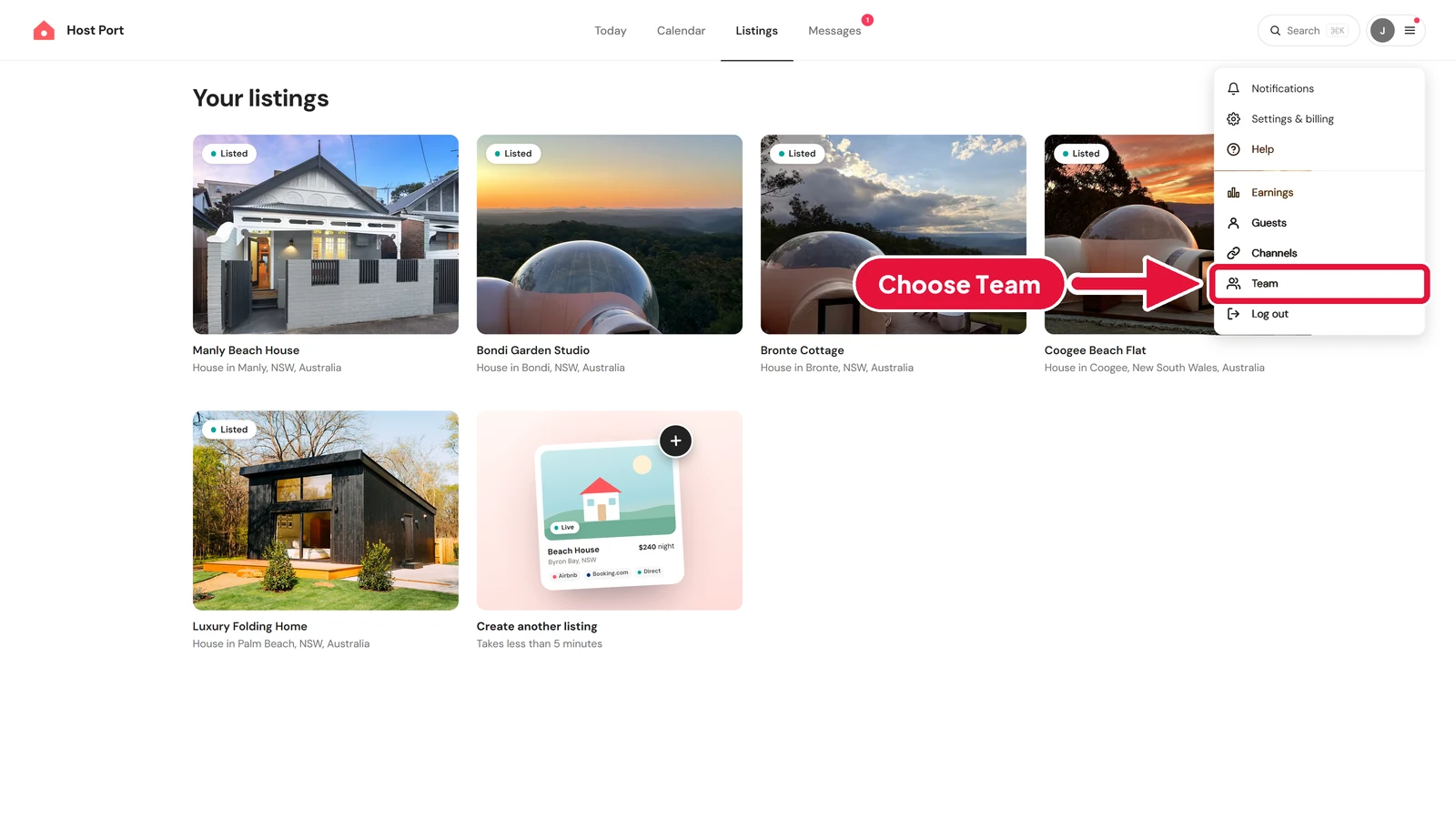
In Host Port, click the menu in the top right corner.
-
From the menu that opens, choose Team.
-
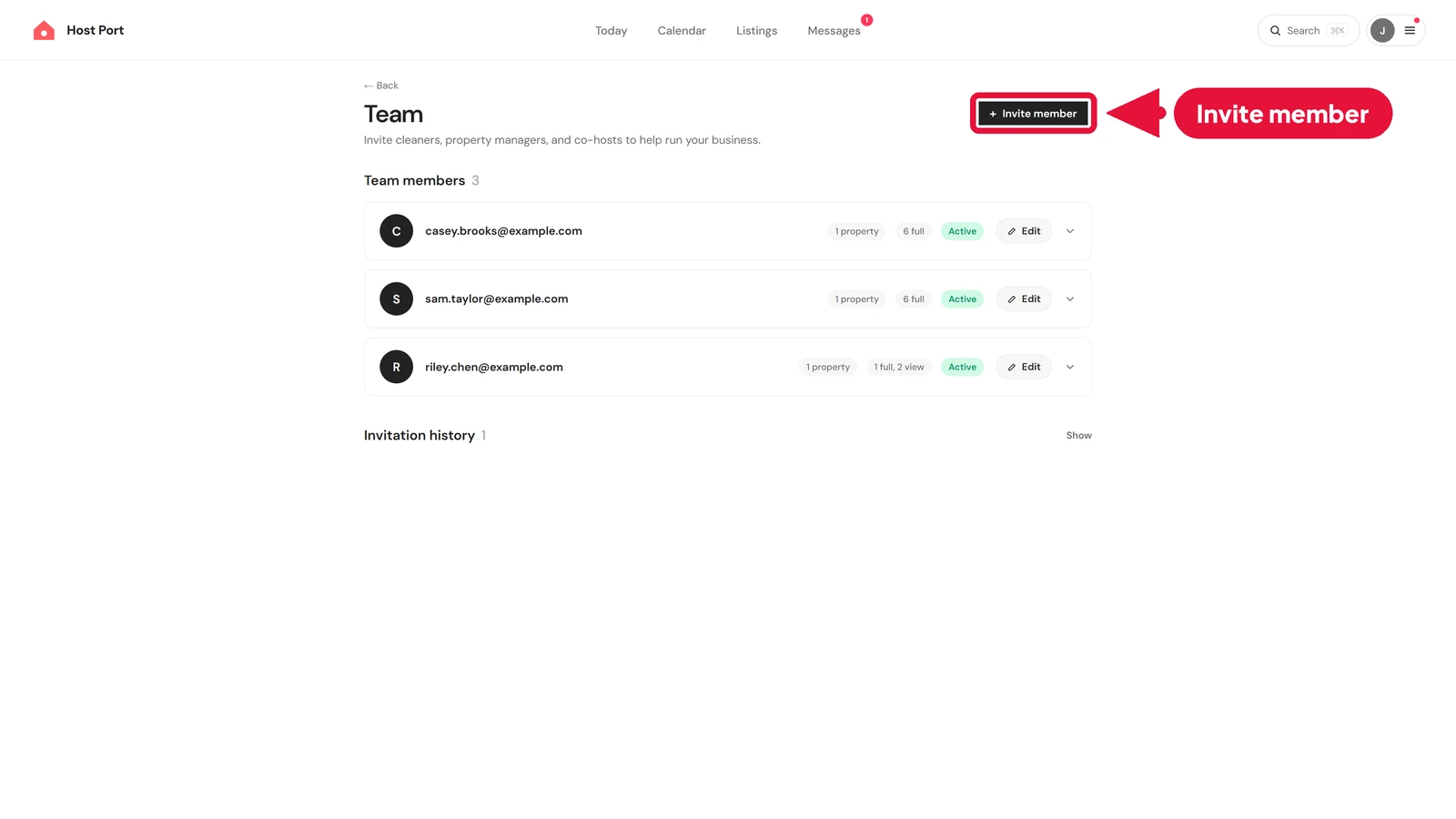
Click Invite member.
Step 6: Invite them once
#-
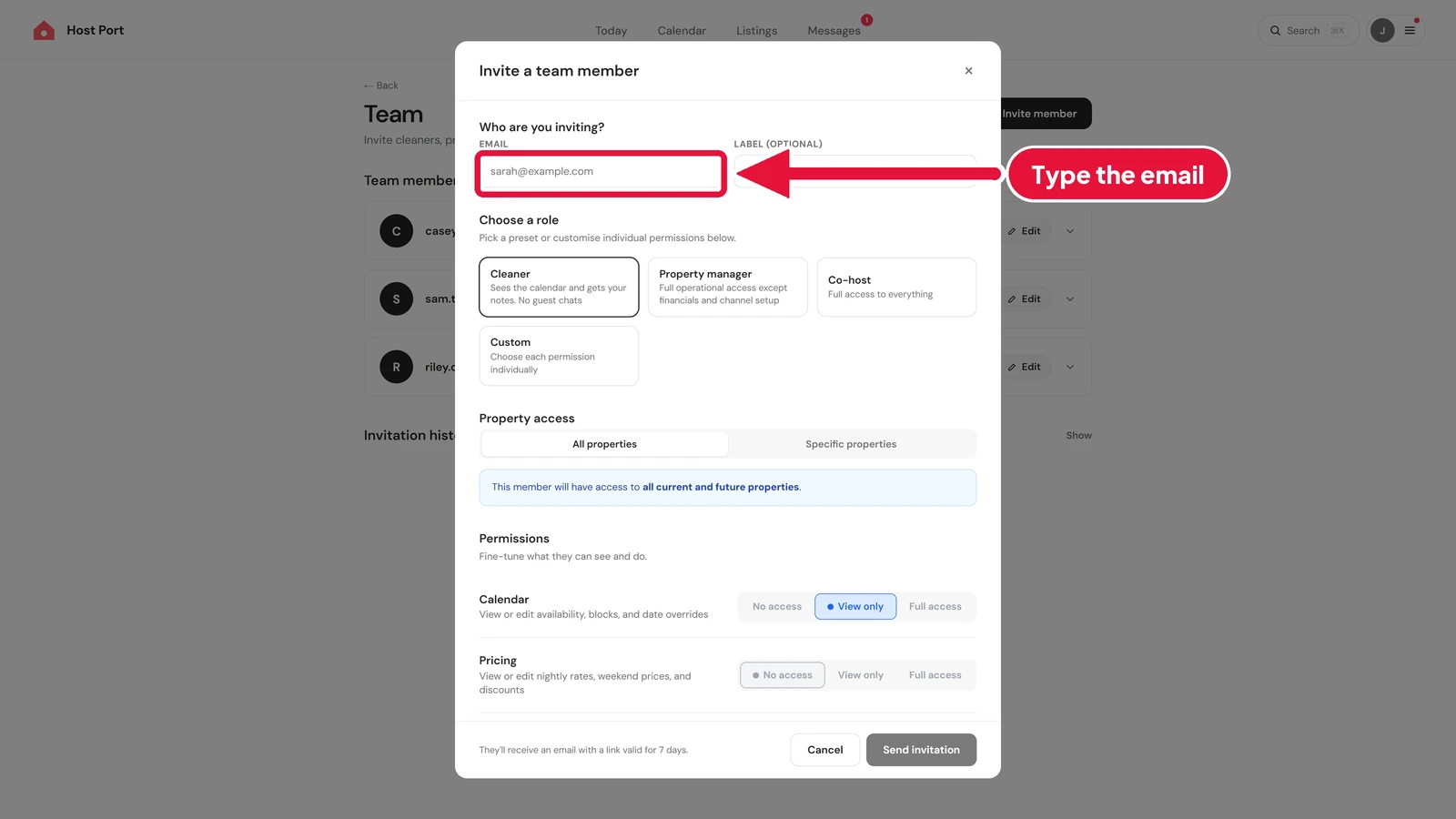
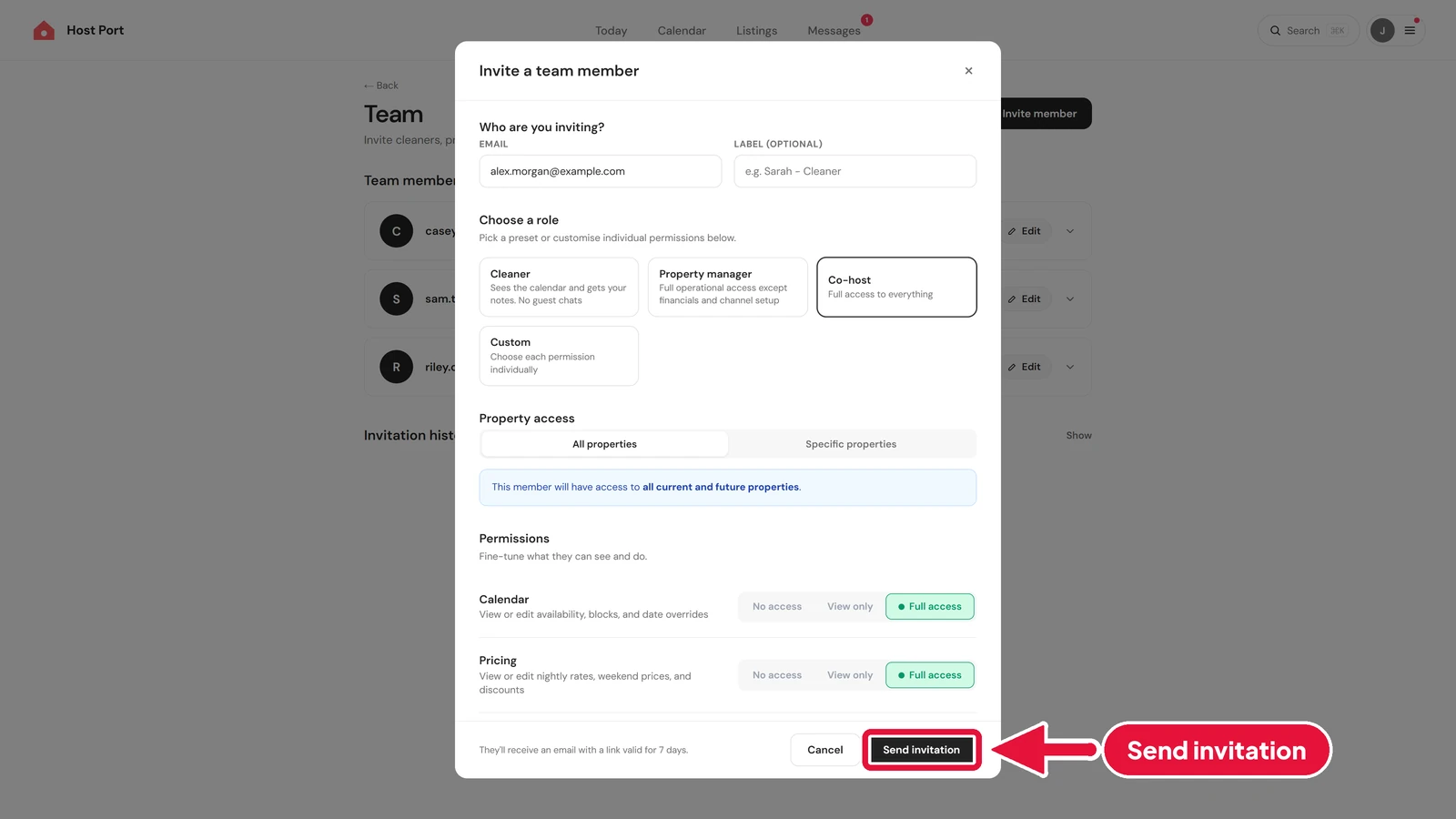
Type your co-host's email address into the Email box, just like on Booking.com.
-
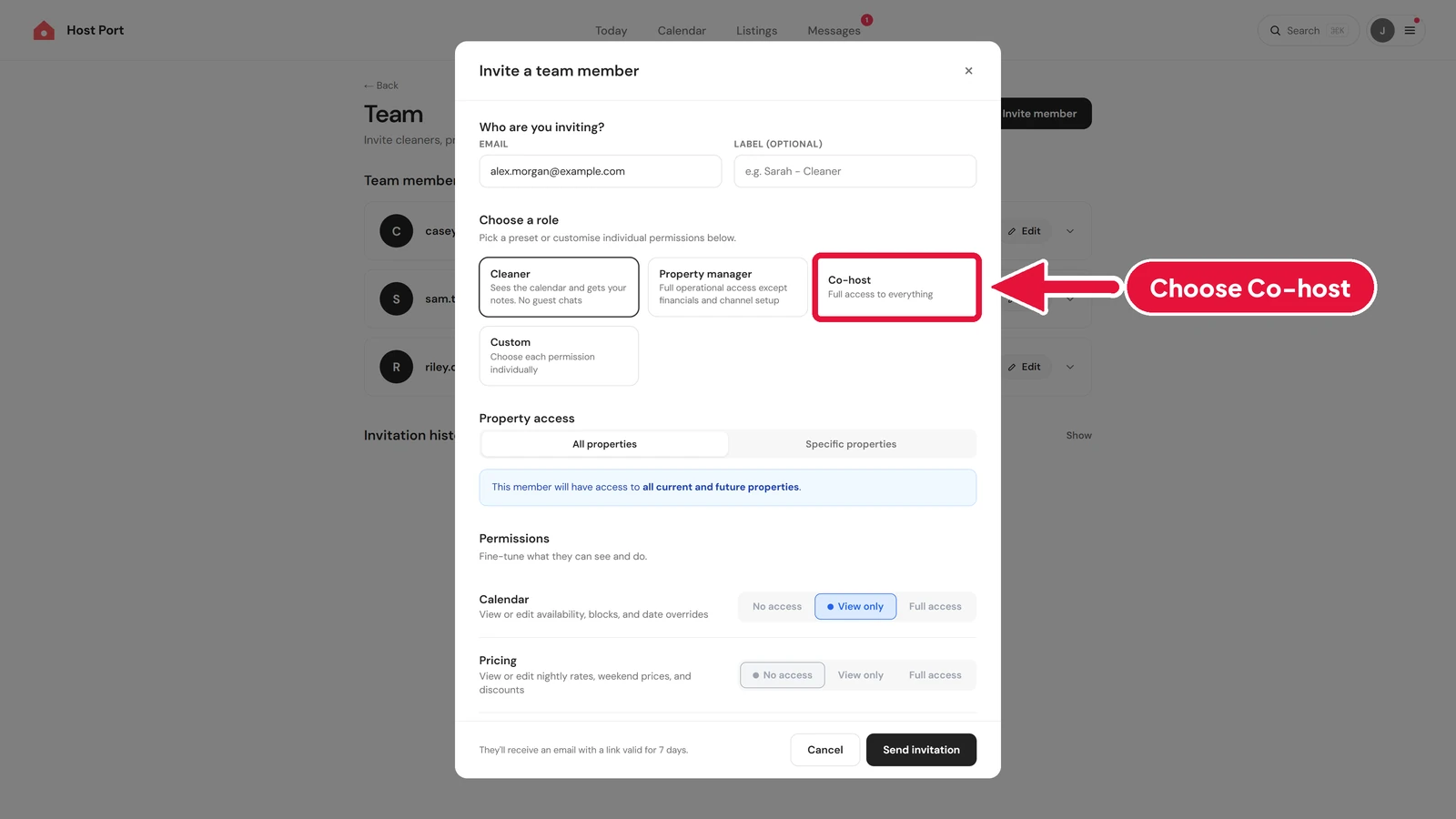
Under Choose a role, choose Co-host. It gives them full access to everything.
-
Click Send invitation.
-
Host Port emails your co-host straight away. They show under Pending invitations until they accept. The link in the email is valid for 7 days.
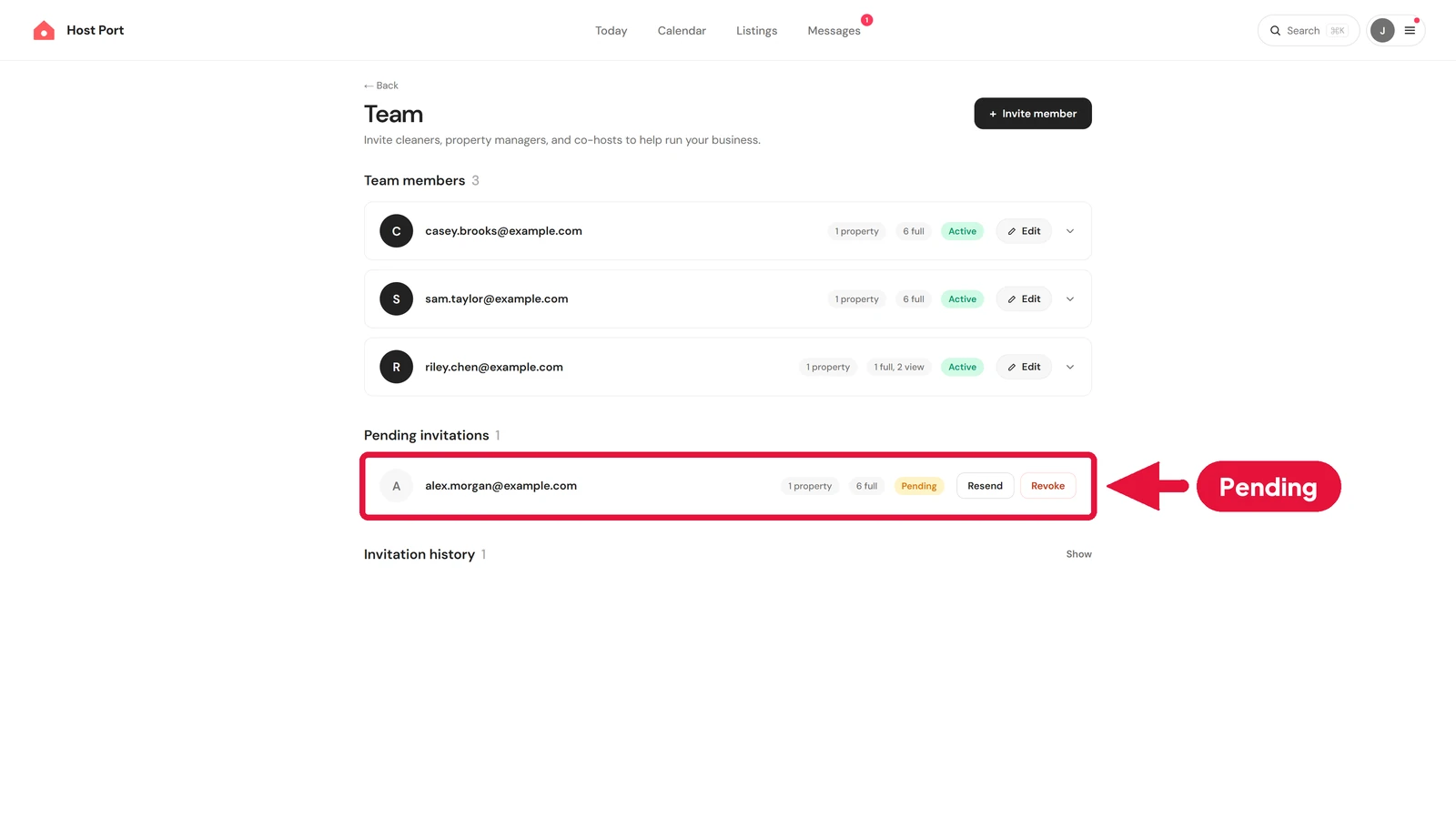
That's it. As soon as your co-host accepts, they can help on every site you use.
Flat pricing, no contract, no sales call.
Host Port syncs your calendars with Airbnb, Booking.com and Vrbo and gives every listing a direct booking page. That part is free: unlimited listings, no card, no time limit. Two-way channel sync is $10 USD per listing per month, and it puts guest messages from your connected channels in one inbox.